Storefront Bundles
Storefront bundles allow you to package together multiple items into one purchasable item on your storefront. Bundles can include items from any of your distributors, as well as custom items from your PSA or manually created in Adaptive Catalog. An example might be a "New Developer Workstation", which includes your standard professional laptop, a docking station, two monitors, and your managed services plan. Let's walk through building that inside of Adaptive Catalog and listing it on our Storefront.
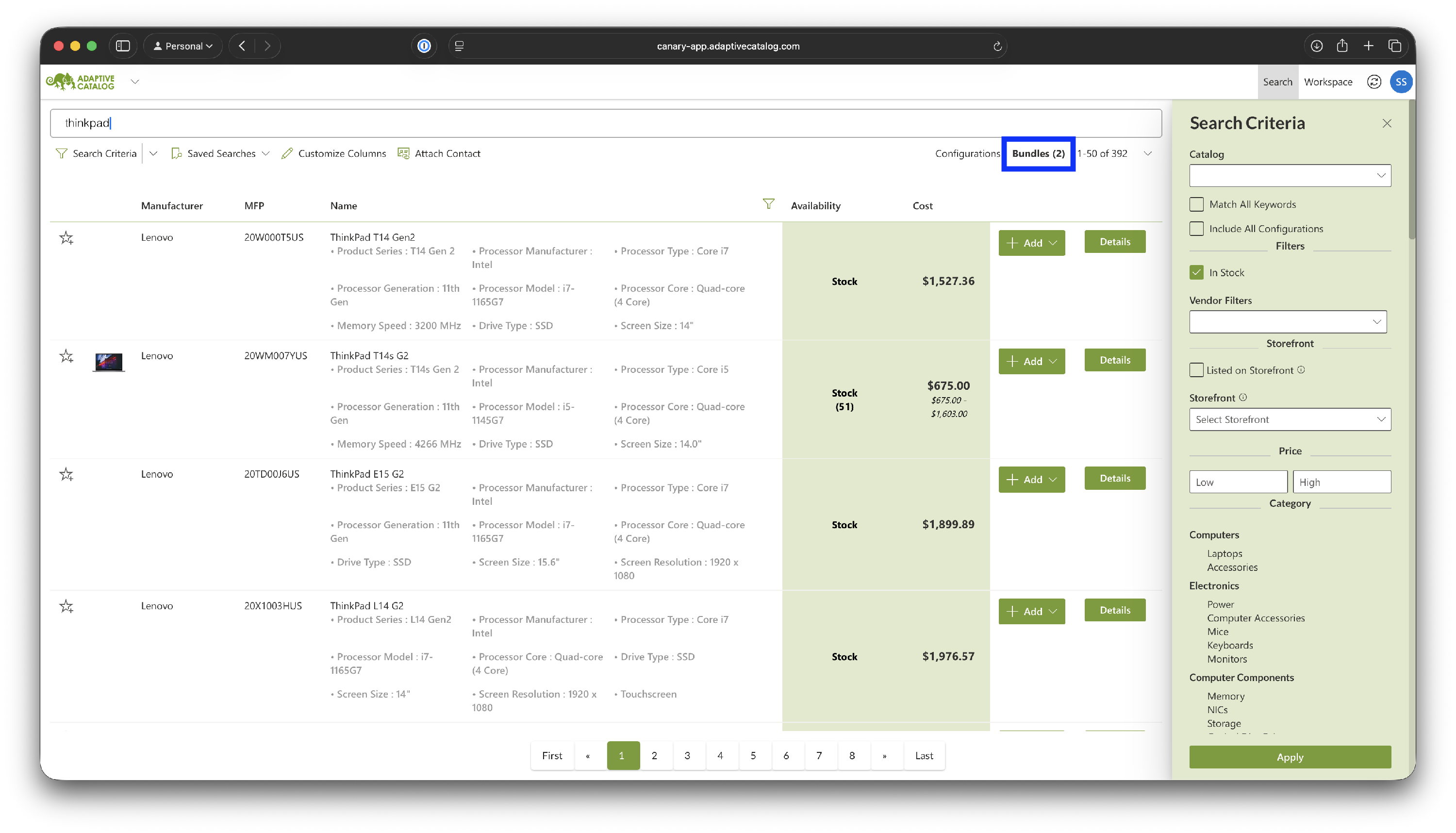
On the product search page, click the "Bundles" menu item at the top.
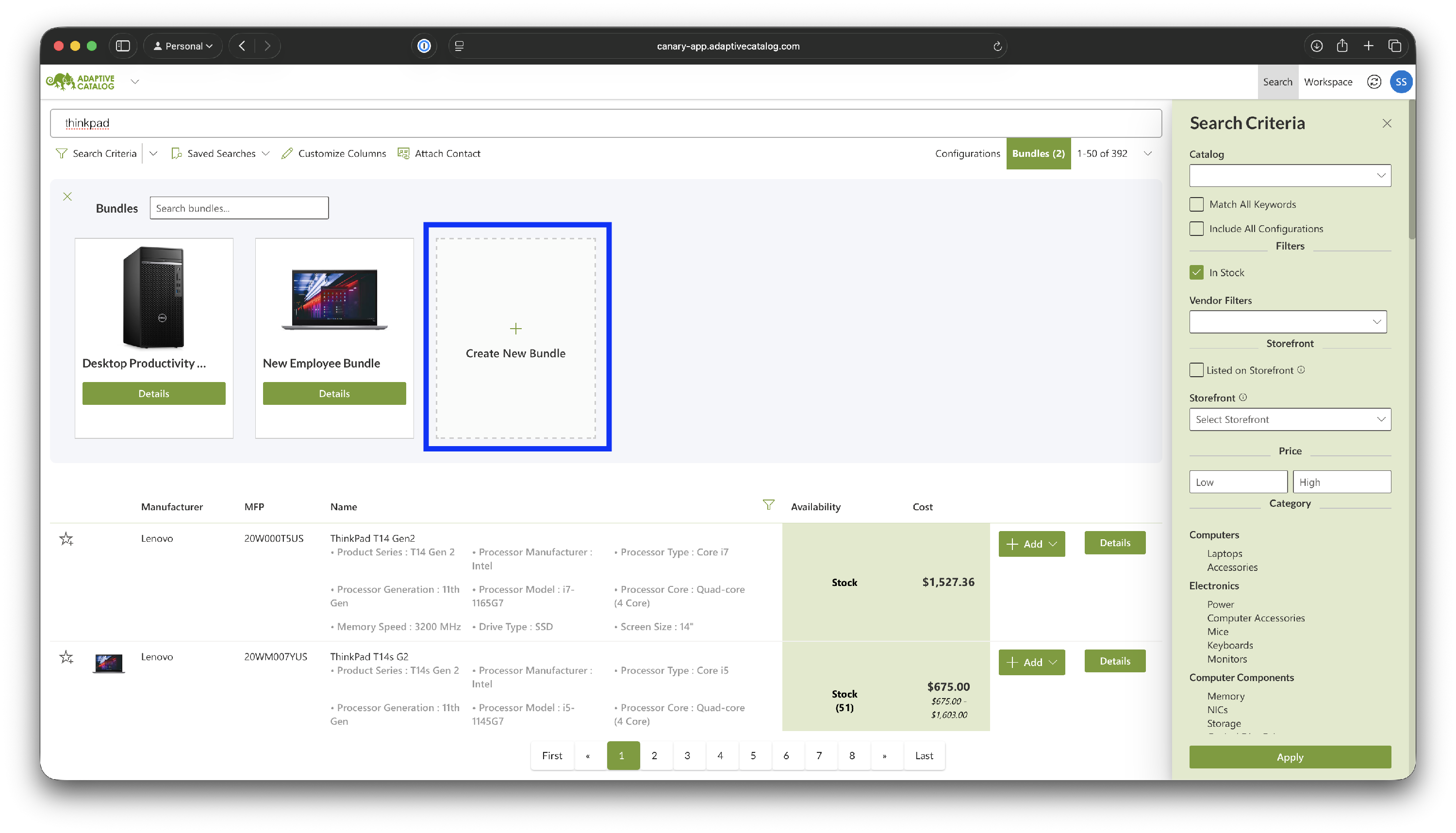
Click on the "Create New Bundle" item in the menu.
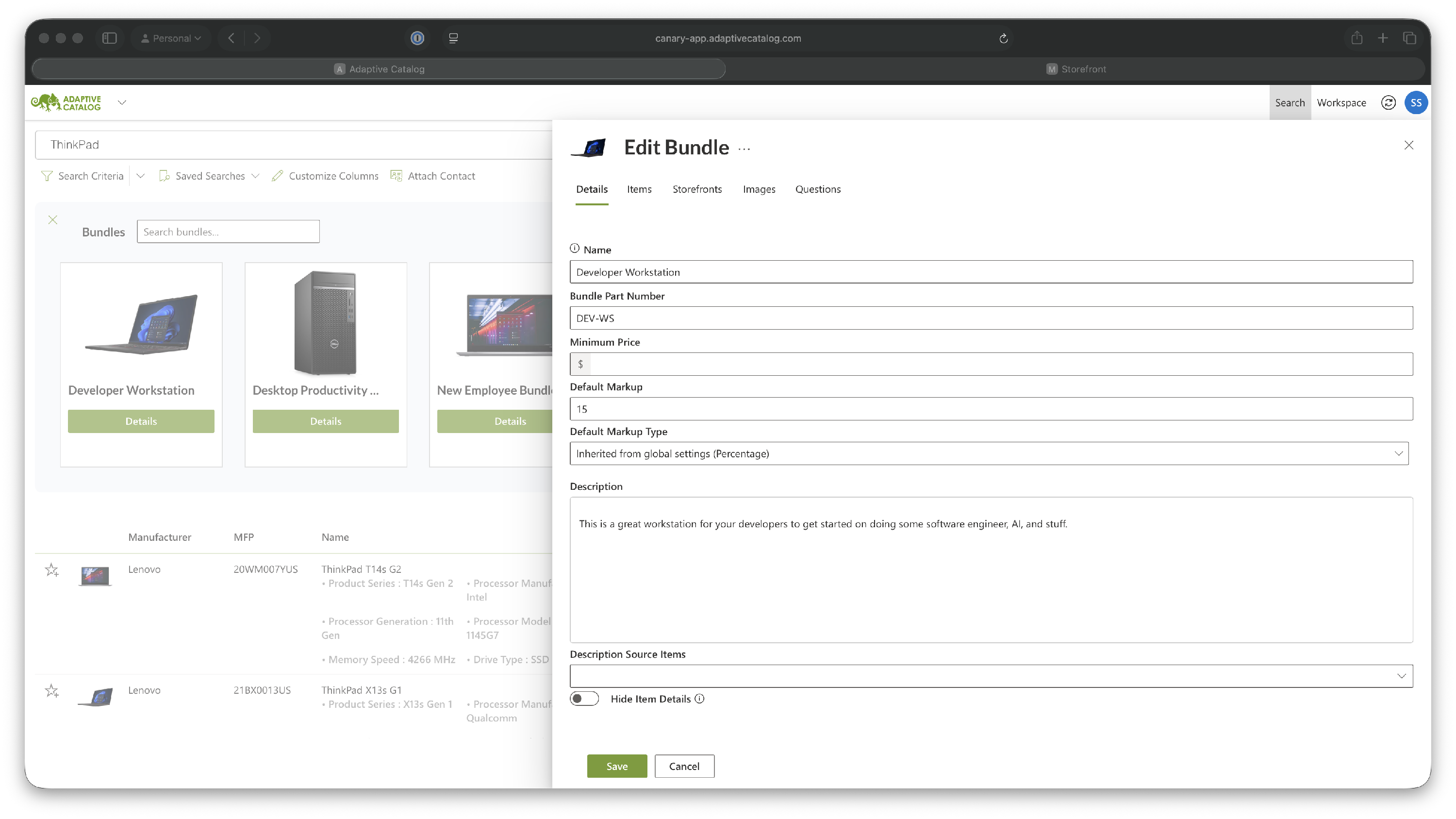
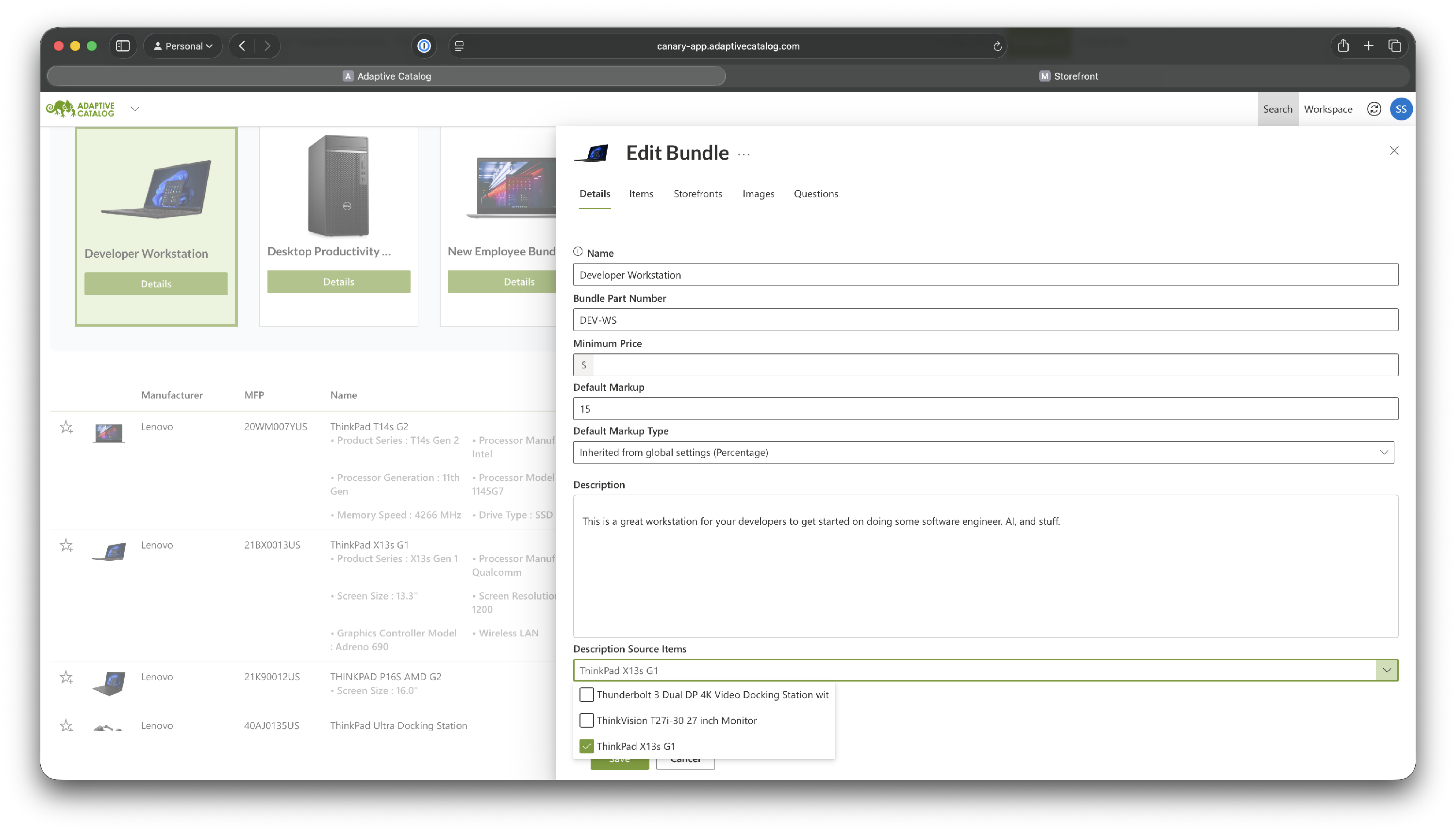
Give your bundle a name, part number, and description. If desired, you can set the default markup for all items on the bundle.
Find the first item you want to list on your bundle and click the "Add" button in the grid. Then click the "Add to Developer Workstation bundle".

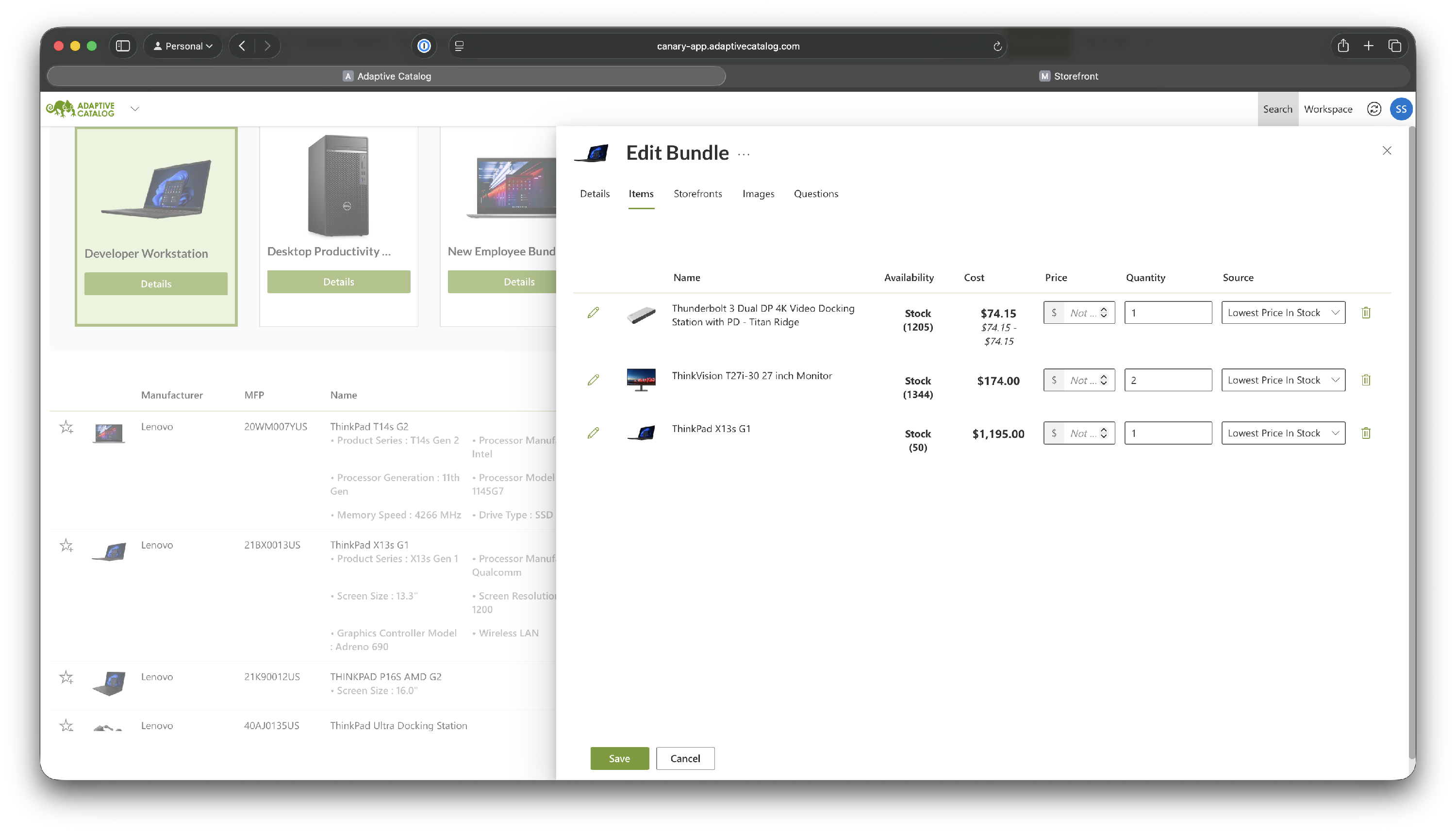
Find any other items you want to add to the bundle and add them in the same way. Then click into the "Details" of the bundle. Now you can see the full list of products on the bundle on the "Items" tab. Here you can also override the price, change the quantities, or change the sourcing options.
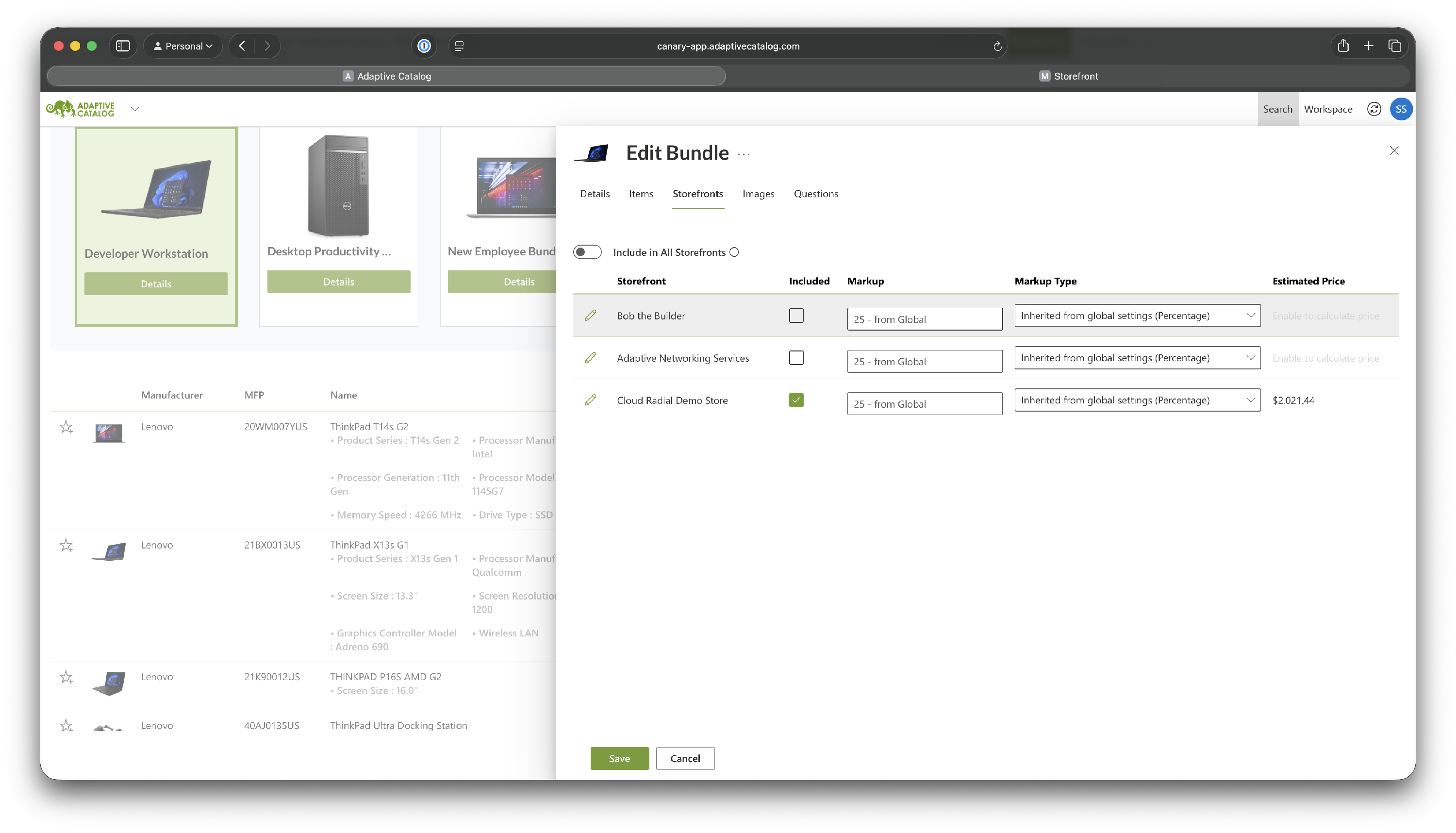
The "Storefronts" tab allows you to pick which storefronts the bundle will be listed on, change the markup options for that specific storefront, and see an estimated price. If a product is not available due to sourcing options for that store or lack of stock, you will see a warning in the "Estimated Price" column.
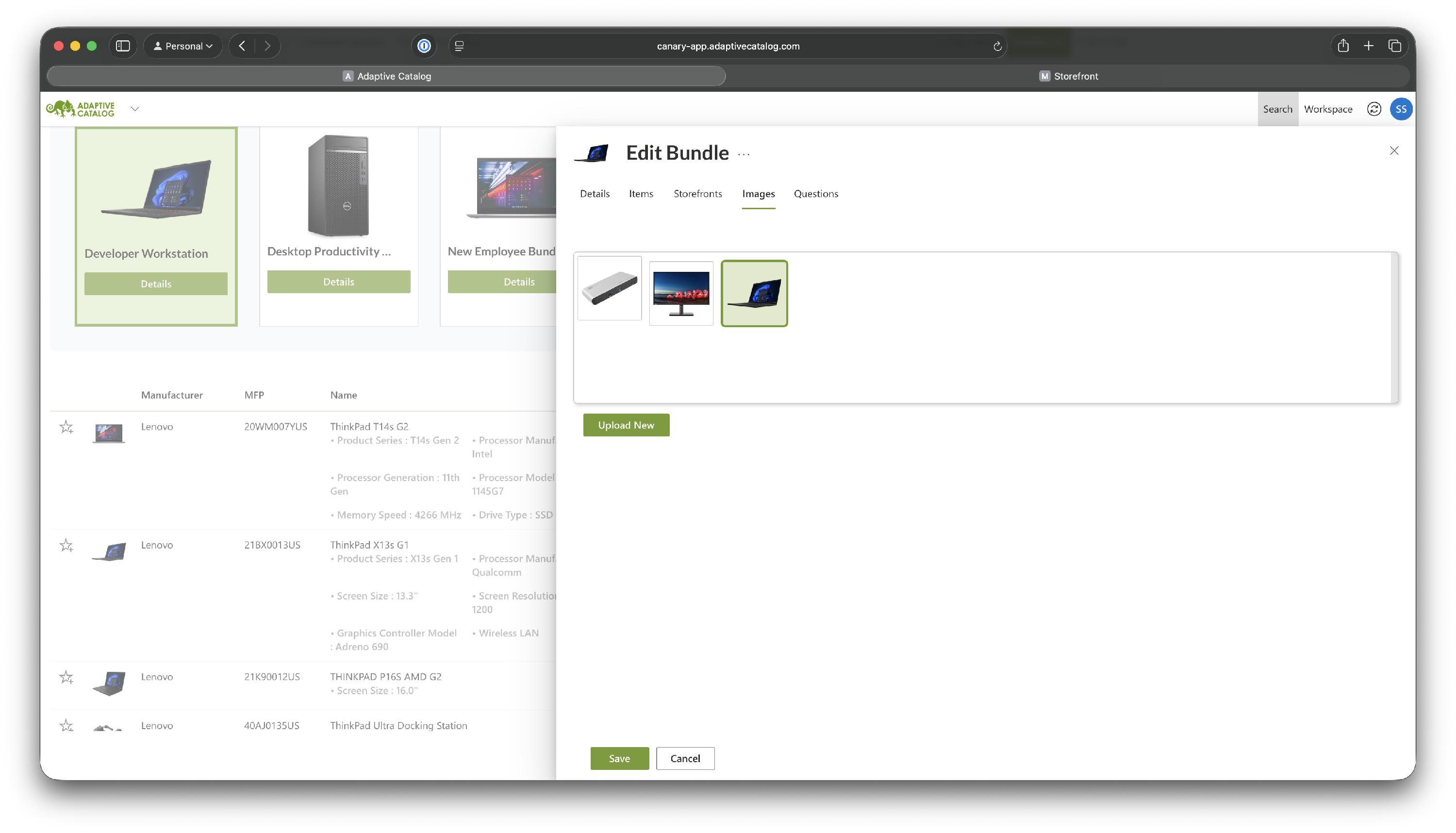
The "Images" tab allows you to select a specific product image to be used as the bundle image or upload a new image.
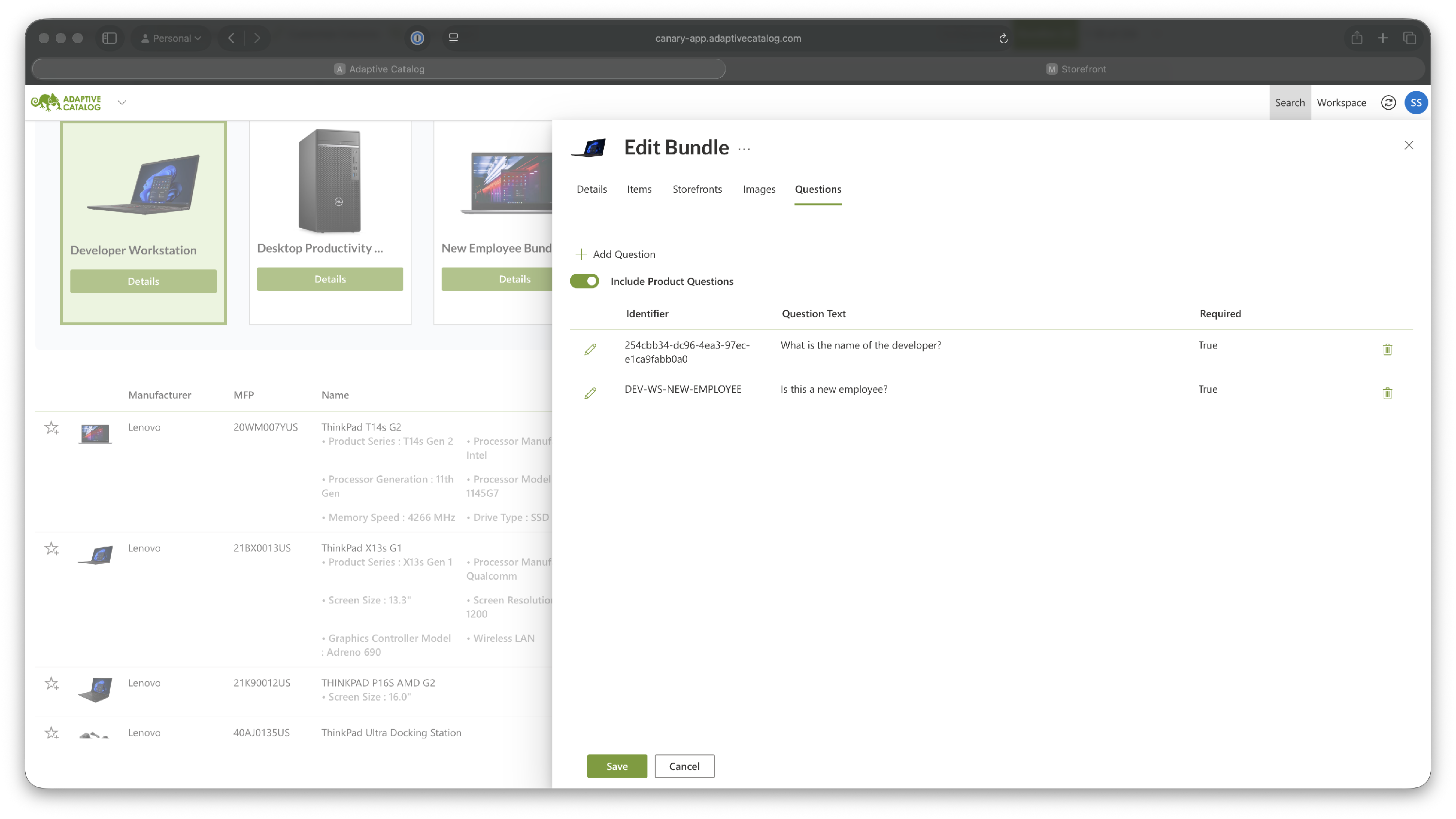
The "Questions" tab allows you to add bundle specific questions that will be presented to the user upon checkout on the store. You can also choose if any product specific questions should be included or excluded.
Back on the "Details" tab, you can now choose options like "Description Source Items". Any items chosen here will have their product descriptions added to the bundle description.
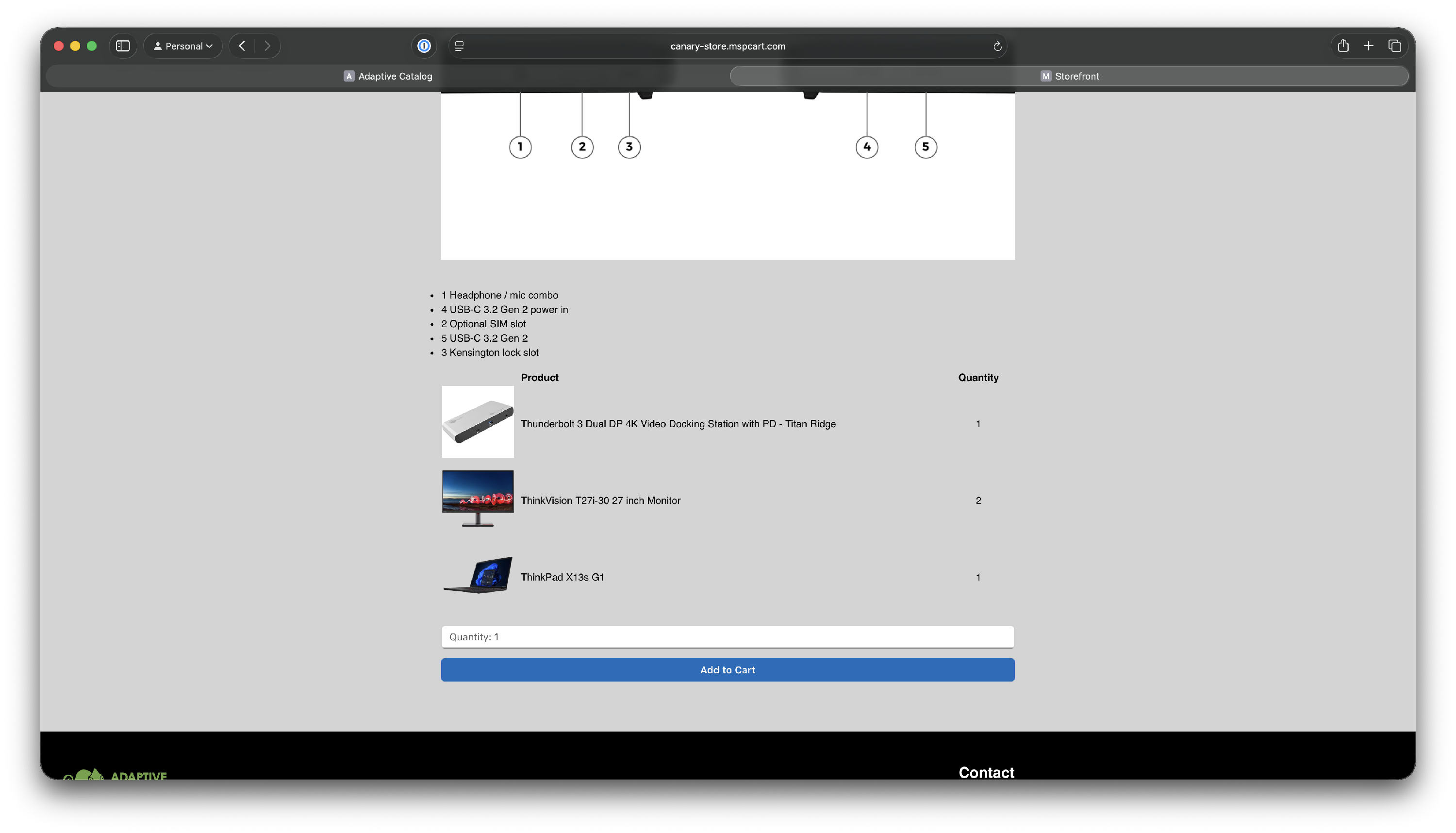
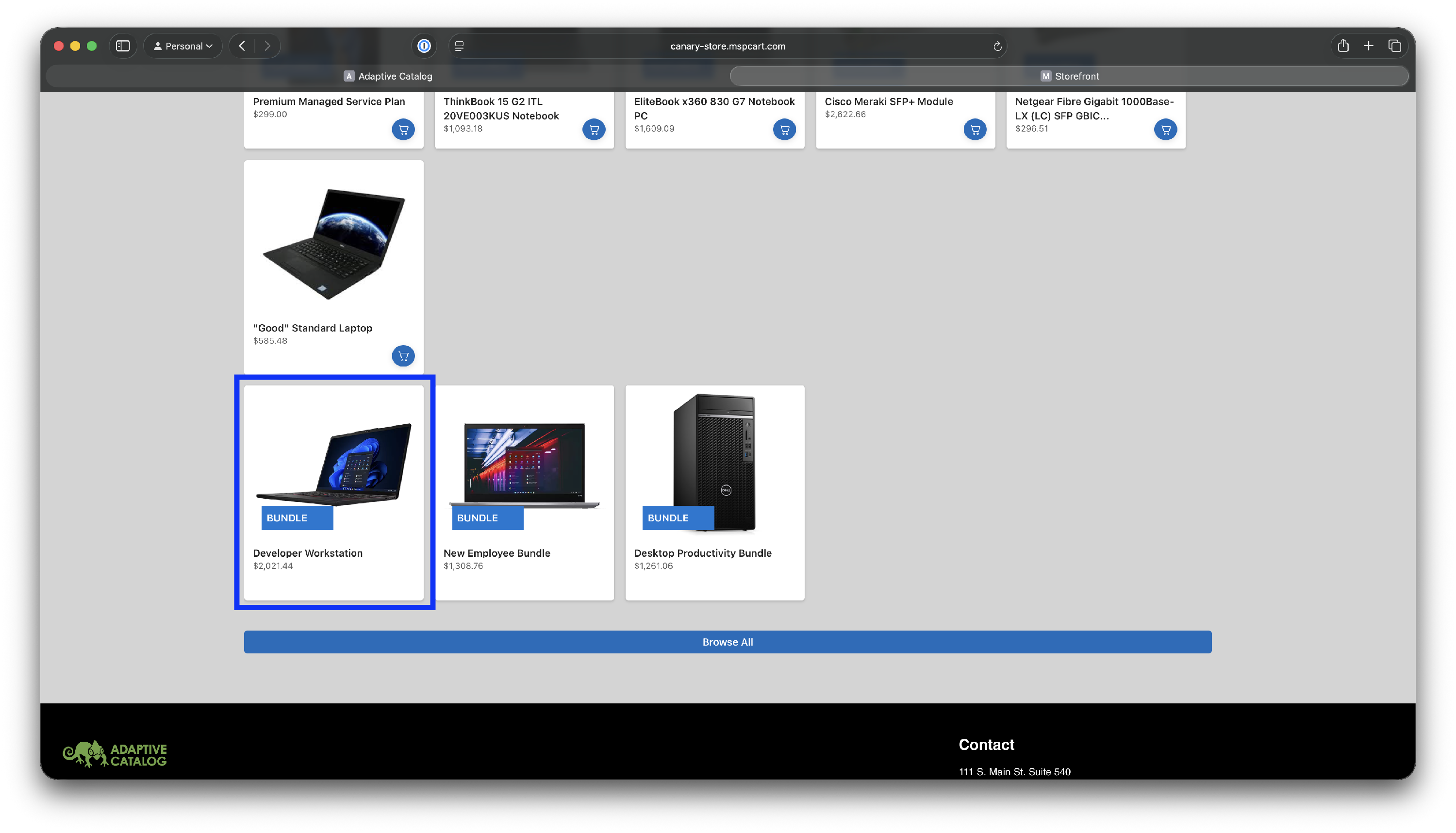
You should now be able to find that bundle on your storefront. Let's take a look at how that is presented. Depending on the configuration of your store, all of your bundles will likely be presented on the home page in one group. Clicking on the bundle will take you to the bundle details page.
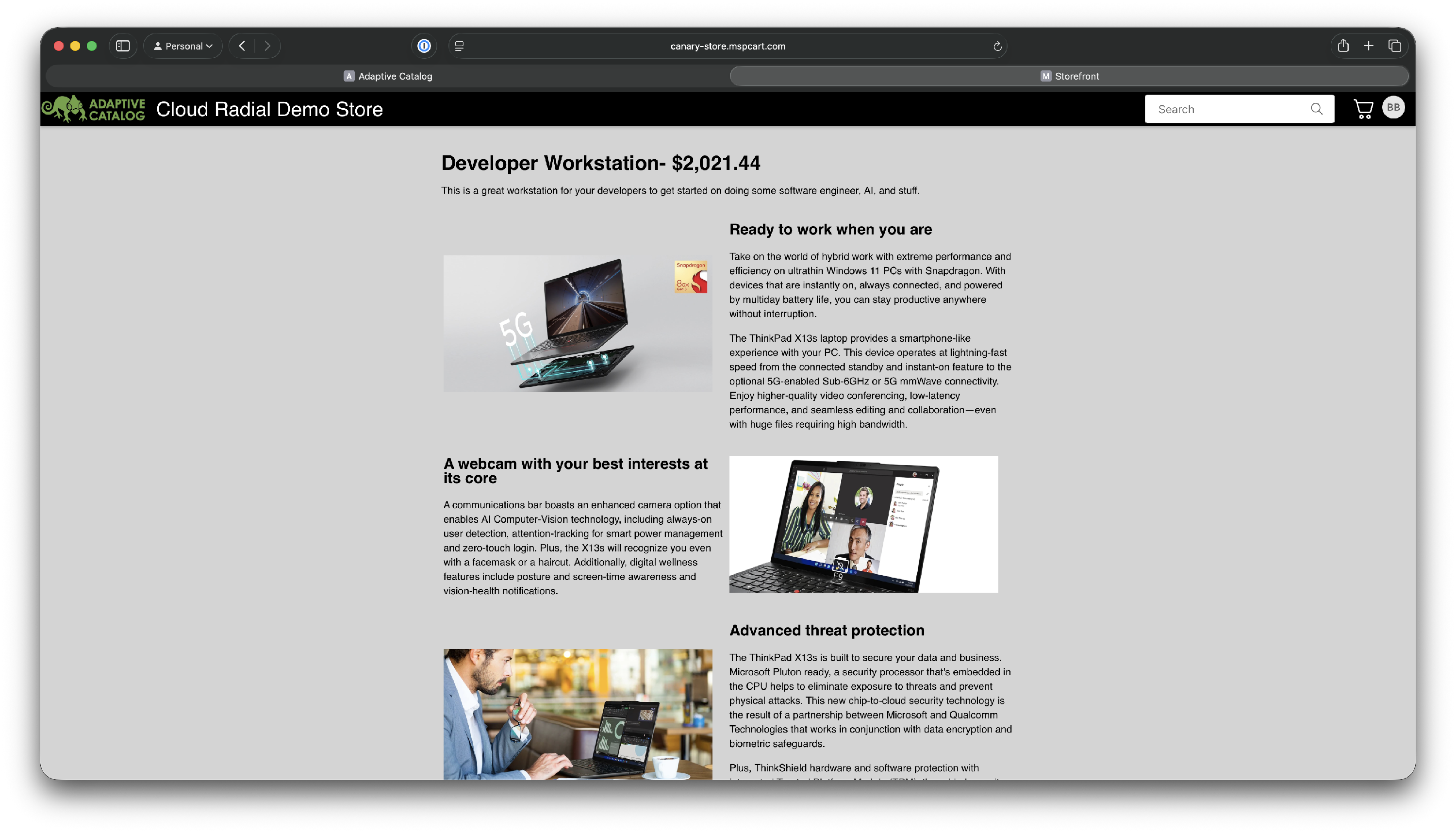
The bundle page will show any description you have added, as well as any of the product descriptions you selected in the "Description Source Items" option.
Scrolling to the bottom of the description, the user will be an able to see the full list of products included in the bundle and add it to their cart.